Downloading Order Images
The Warehouse Portal lets customers download order images that are stored in Azure Blob storage. Images can be downloaded individually or, when an order has more than one image, packaged together into a single ZIP file.
This page describes how the feature behaves, what is required for it to work in a given environment, and how to verify it.
Goals
- Allow customers to download a single image with its original filename.
- Provide a Download All control that packages every image on an order
into a ZIP named
order-{orderNumber}-images.zip. - Offer clear progress, sensible limits, and robust error handling without requiring server-side ZIP creation.
User Experience
Entry points
- The Images card on the Order Details page shows a per-image download control on hover (or on tap on touch devices).
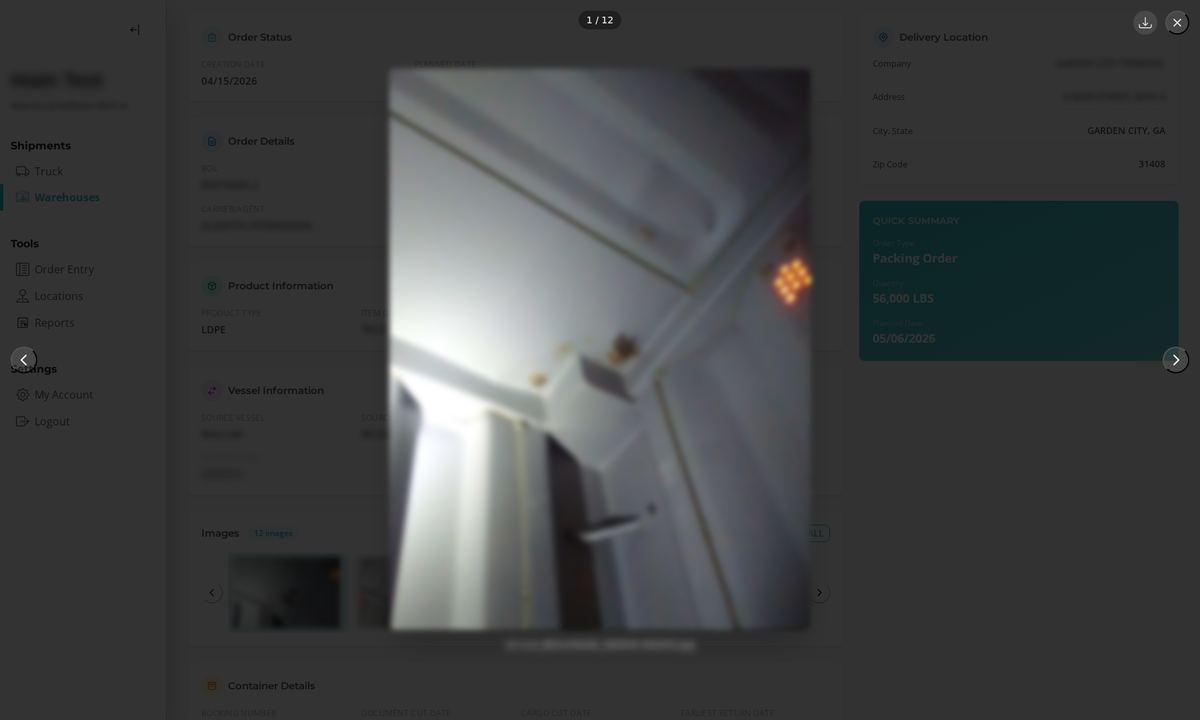
- The lightbox toolbar includes a download button for the active image.
- When an order has two or more images, a Download All button appears in the Images card header.
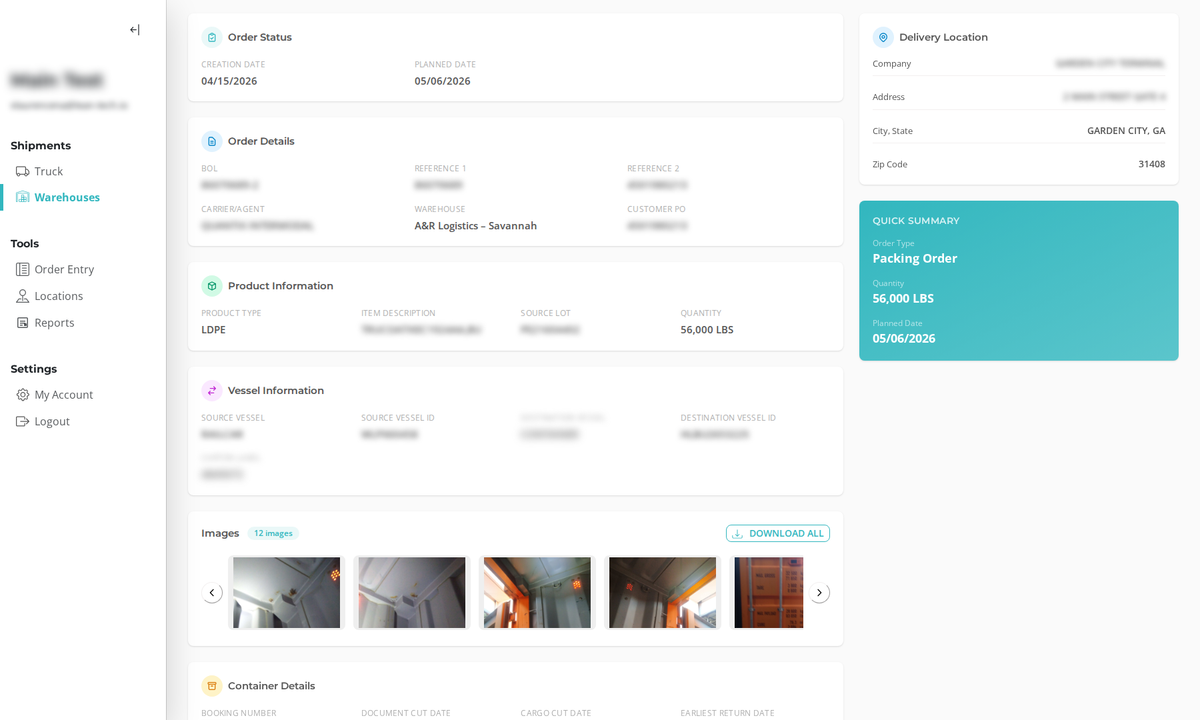
Bulk download behaviors
- The button label updates during processing, e.g.
Downloading 3/12…. - The control is disabled while a download is in progress to prevent duplicate runs.
- For orders with more than 20 images, a confirmation prompt appears before the download starts.
- If some images fail to fetch, the ZIP still downloads with the successful files and a toast alerts the user.
Single-image lightbox
Clicking a thumbnail opens the lightbox. The toolbar shows a download control for the currently visible image, and the original filename appears below the image.
Fallbacks
- Single-image failures fall back to opening the image in a new browser tab so the user can save it manually.
- Bulk failures surface a toast with a plain-language explanation.
Technical Details
Implementation notes
- Client-side ZIP creation uses
fflate(~8 KB gzipped), chosen over heavier alternatives. - Network concurrency for bulk fetch is capped at 4 simultaneous requests.
- Images are fetched only on user action (no prefetch).
- Visibility of the feature continues to be governed by the existing
blobImagesflag.
Filename handling
- Single downloads and ZIP entries preserve the original blob filenames.
- The ZIP archive name follows the format
order-{orderNumber}-images.zip.
Azure Storage dependencies
Because the bulk download fetches images via XHR/Fetch, the Azure Storage account must permit the portal origin via CORS. If CORS is missing, the individual "open in new tab" fallback still works, but bulk download will fail with a toast.
Required Azure CORS configuration
Add or verify a CORS rule on the Azure Blob service for the portal's origin(s).
| Setting | Recommended Value | Rationale |
|---|---|---|
| Allowed origins | https://test.arportal.io, https://portal.arportal.io (and any additional environments) | Permits the Warehouse Portal to fetch blobs for zipping. |
| Allowed methods | GET, HEAD, OPTIONS | Image fetches use GET; preflight may require OPTIONS. |
| Allowed headers | * (or minimally: Authorization, x-ms-*) | Ensures SAS and Azure headers are accepted. |
| Exposed headers | Content-Length, Content-Type, ETag, x-ms-* | Allows the browser to read useful response metadata. |
| Max age | 86400 | Caches preflight for a day to reduce overhead. |
Error Handling
- Single-image download: on fetch error, the blob URL is opened in a new tab so the user can use Save As.
- Bulk download: continues on partial failures, completes the ZIP with the successful files, and shows a toast summarizing the failures.
- CORS missing or misconfigured: bulk download fails with a toast; the single-image "open in new tab" fallback remains viable.
Known Console Warnings (Not App Bugs)
During QA in Microsoft Edge, several console messages may appear that are not generated by the application and do not impact functionality:
msgport.jslogs such as{"notify":"init_tab"}from the Edge sidebar or Copilot.- Extension messaging warnings: "A listener indicated an asynchronous response… message channel closed before a response was received."
- Issues panel warnings: "Unload event listeners are deprecated…" in
content.js:1and Cross‑Origin Read Blocking (CORB) notices, both tied to an installed browser extension.
How to verify: reload the same order in an InPrivate Edge window (extensions disabled). Application logs will be clean; image viewing and downloads still work.
Scope and Limitations
- No server-side ZIP endpoint; all zipping is performed in the browser.
- No editing or annotation tools.
- No cross-order bulk download.
Testing and Acceptance Criteria
- Thumbnails show a hover-revealed download icon and save with the original filename.
- The lightbox toolbar download saves the active image.
- Download All appears only when an order has two or more images and produces a correctly named ZIP.
- The button shows live progress and is disabled during download.
- 20+ images trigger a confirmation prompt before the download starts.
- Partial failures yield a toast and still include the successful files.
- Network concurrency is limited to 4 simultaneous requests.
- On touch devices, the download control is reachable via tap.
Operational Checklist
- Verify Azure Blob CORS for all relevant environments (test, staging, production).
- Confirm the
blobImagesfeature flag is enabled for the target customers. - Sanity-test single and bulk downloads in Chrome, Edge, and Safari.
- Validate fallback behavior with one forced image failure.
- Add a release-note entry referencing OT-3636 and PR #548.
If bulk download fails immediately, check Azure CORS and the browser DevTools Network tab for blocked preflight or 403 SAS errors. If the console shows extension noise, re-test in InPrivate mode.
References
- Jira: OT-3636
- GitHub PR: portal-ui#548