Viewing the Order Calendar
Each Warehouse Site page has a VIEW ORDER CALENDAR button that allows you to view a calendar with both the warehouse packaging and shipping orders.
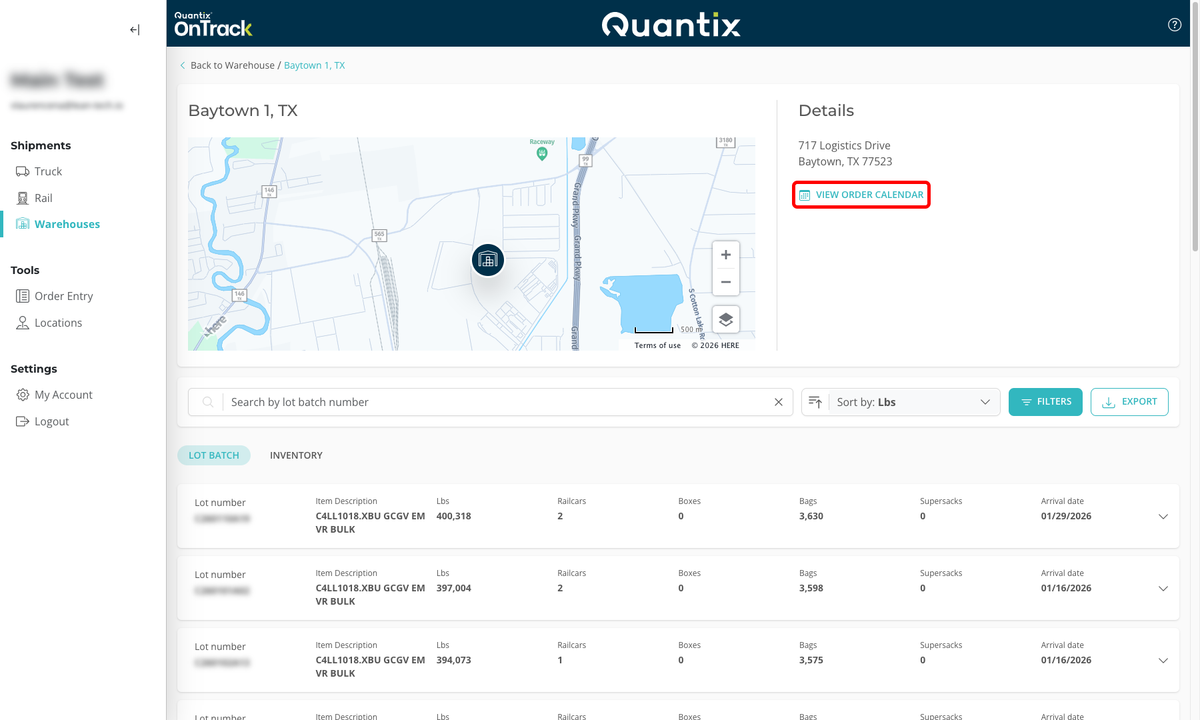
When you click the VIEW ORDER CALENDAR button, you will be taken to the Warehouse Shipping Orders Calendar page for that specific warehouse. The Warehouse Shipping Orders calendar has two tabs:
- SHIPPING ORDERS: The Shipping Order Calendar shows the calendar for Shipping Orders for that warehouse.
- PACKAGING ORDERS: The Packaging Order Calendar shows the calendar for Packaging Orders for that warehouse.
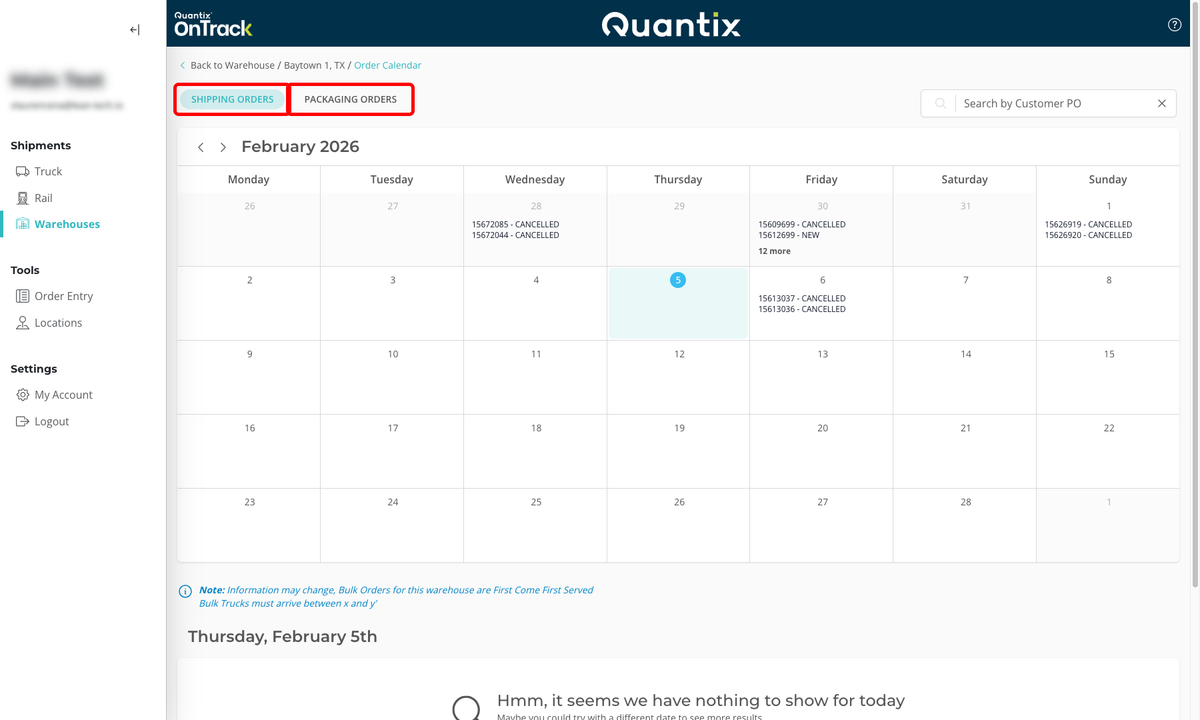
By default, the calendar will show the current month, but you can navigate to previous or future months by using the arrows at the top of the calendar.
For more details, you can select the day you are looking for, which will bring up a details card for all the scheduled orders.
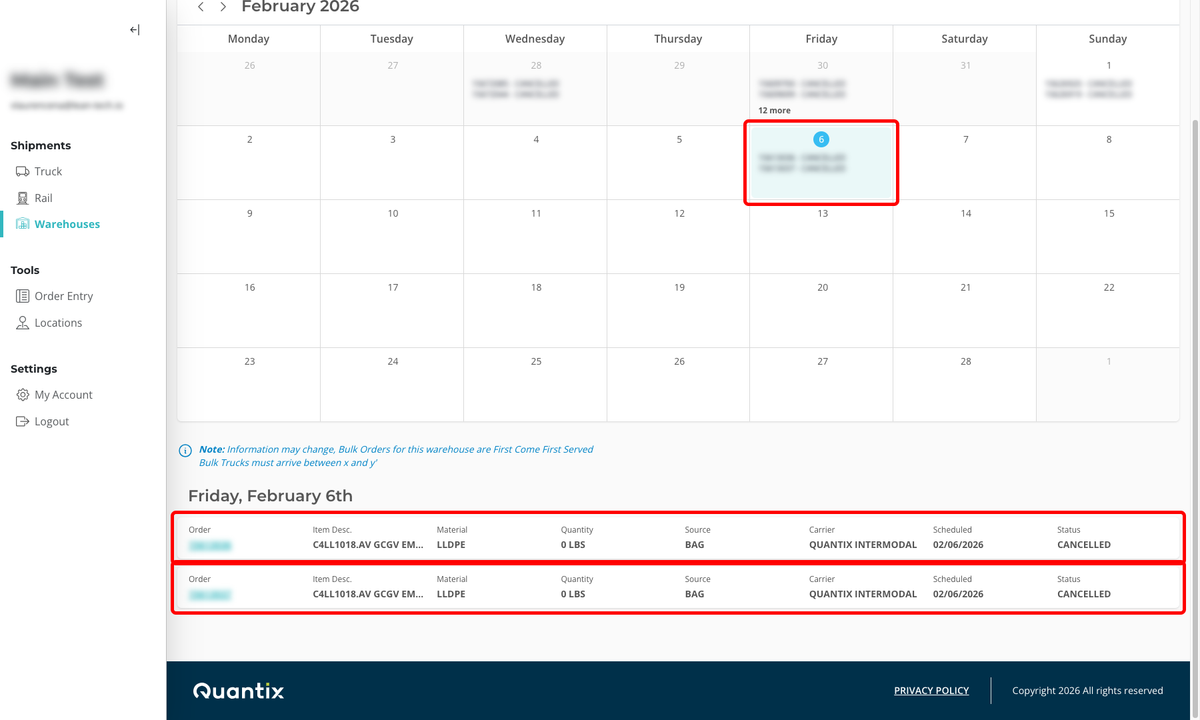
Each detail card will include the following information:
- Order
- Item Desc
- Material
- Quantity
- Source Vessel
- Carrier (if applicable and redacted here for privacy)
- Scheduled date
- Current order status

Finally, by clicking the card, you'll be taken to the Order Details Page.
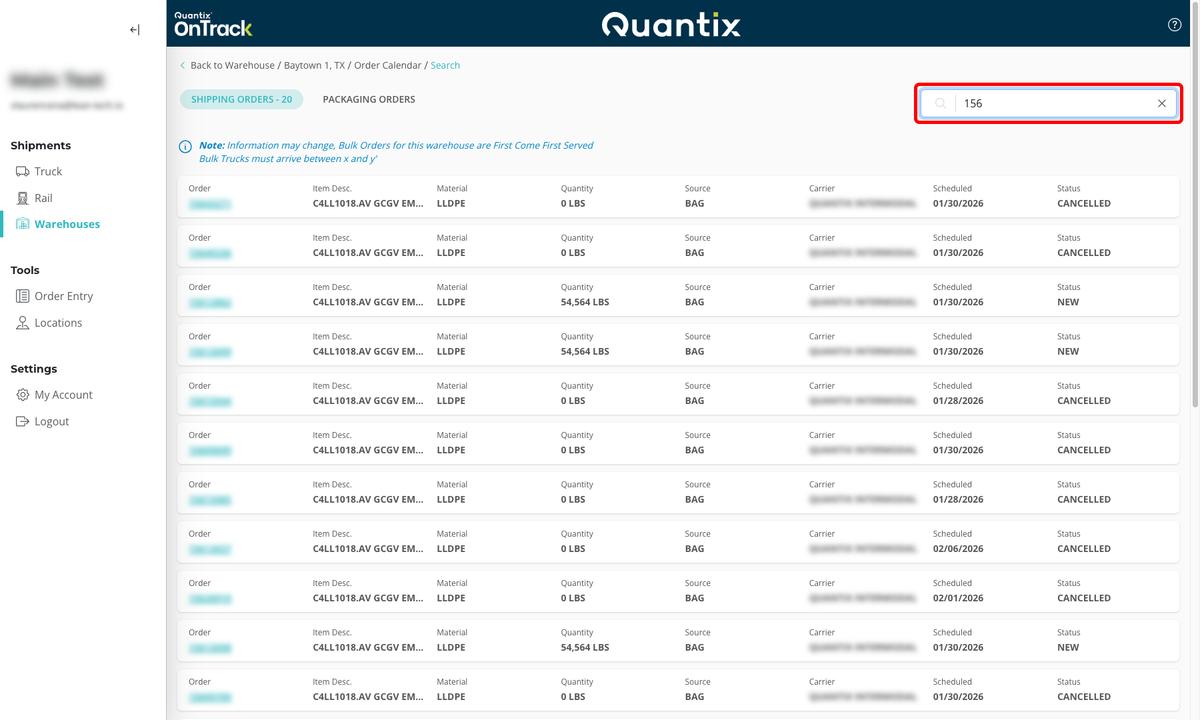
Searching by a Customer PO
You can also search for a PO within the calendar view by using the search bar in the upper right-hand corner and OnTrack will return results for all orders that match that customer's PO: